
SOFOS 360
Create space
A space can only be created if a location (address) has been created.
Go in the menu on the left to Spaces.
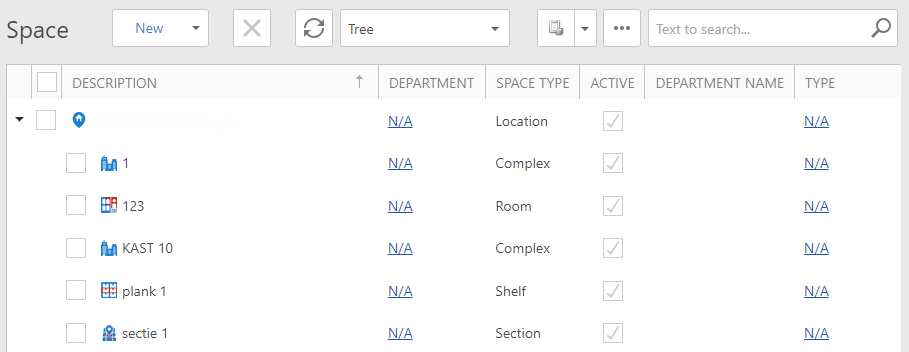
In the overview you can choose from two structures: the Tree Structure and the List Structure. For a detailed explanation, see Space .
Create spaces
You can create a new space in two ways. You click on the text of the New button. When you do this for the first time, the Complex space type will be chosen automatically. If you have already created rooms, the last used room type will be used automatically.
You can also click on the black arrow () next to "New". A selection menu opens. For a detailed explanation, see Overview Spaces.
A number of fields are only visible with certain spacetypes. The instruction is limited to the highest level (location) and the level directly below (complex).
New location
Click on the black arrow next to New and choose Location.
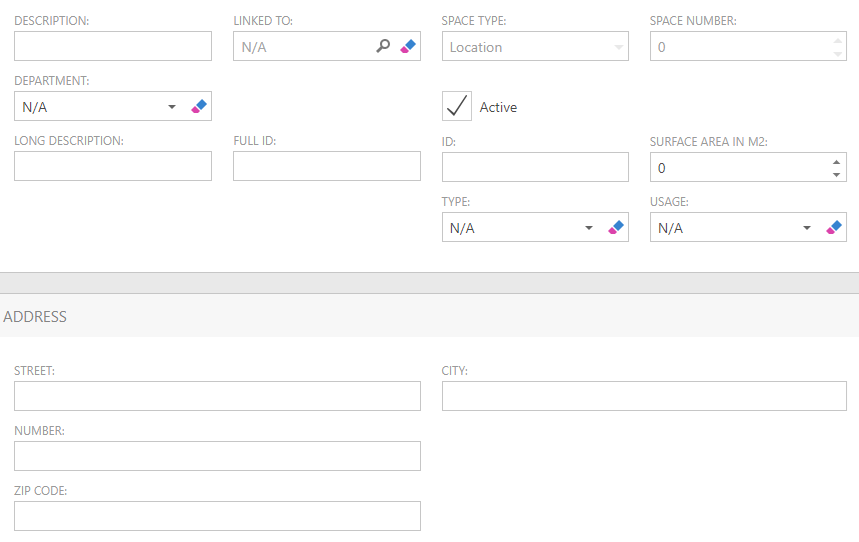
The description and address details are mandatory, the other fields where you can enter something are not. When you create a location for the first time, you choose the address of the head office; then you can specify locations of other locations if applicable (in connection with the link). Confirm your entry with Save. Then you can create the other desired spaces.
New complex
Click New in the main Spaces window. You will then see the screen below. Enter at least Description. Next to "Linked", click on the search icon. Choose the name (description) you prefer. Now you have create a link with the location you prefer. Leave the check marks at Ground floor and Active. If you have the correct data, you can also enter Protection level and area in m2.
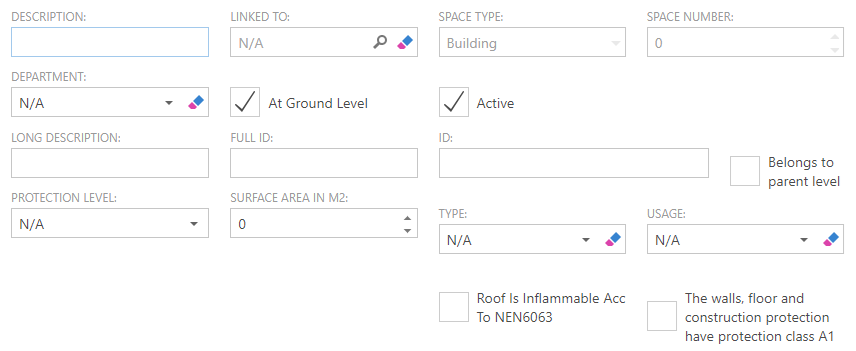
When you have entered everything, confirm your entry with Save.
In this way you can create all spaces you prefer to and link them to the desired parent space.